Flashcard Review
In short: finish an exam and Quizzz offers a flashcard deck built straight from that quiz's vocabulary and grammar — playable immediately, no account needed. Flip and grade cards as you go; sign up (or you're already signed in) and the deck moves into your Study portal, where it picks up a real spaced-repetition schedule from then on.
Try it
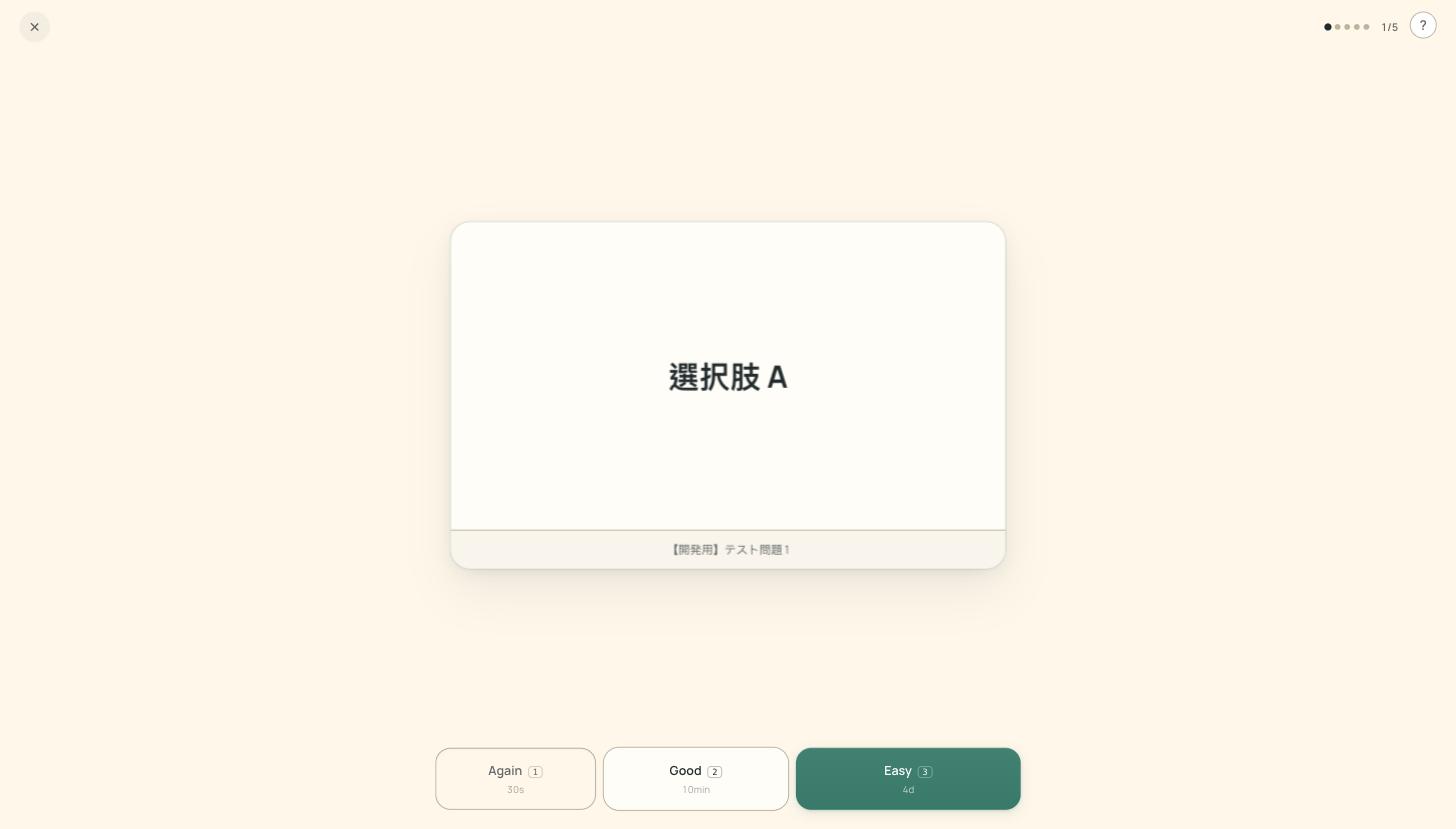
This is a real flashcard review round — the deck built from a public demo exam (Magic Link Quiz Demo). Flip and grade the cards yourself; it's the same thing a student sees:
When it shows up
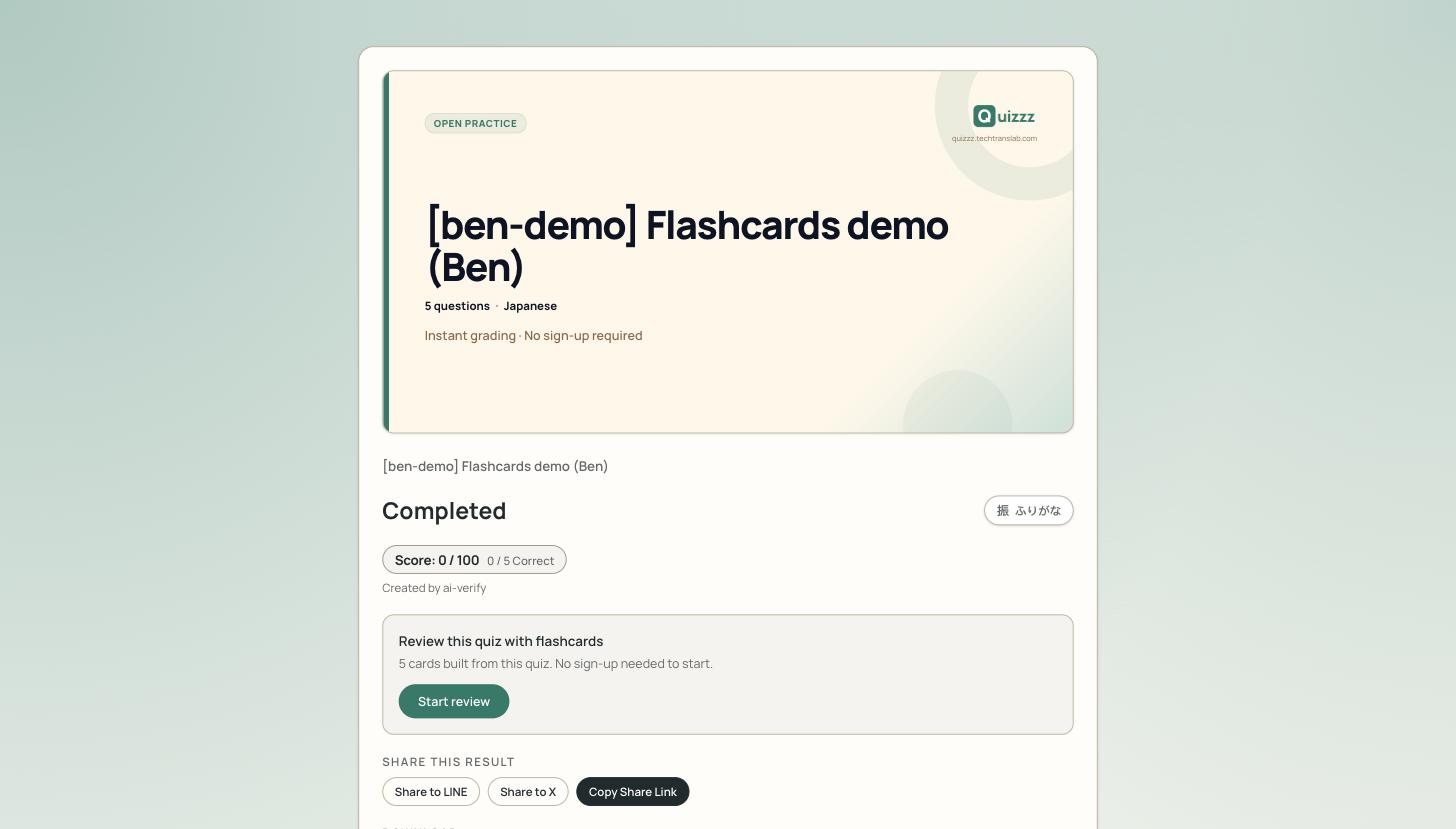
After a student finishes and submits an exam opened through a share link (Public, Classroom, or Student — see Exam Modes; not a logged-in Study portal session) and lands on the results page, a Review with flashcards button appears below the score — but only when all of these hold:
- the quiz's content yields at least 3 review cards (a quiz too short or too thin on vocabulary/grammar never offers one),
- it's a language-learning quiz — a general-knowledge or self-assessment quiz never gets a deck,
- the exam is set to show the score after submitting, and
- for a live Class Exam session, the teacher has broadcast it — the button stays hidden for the whole session and only appears after the teacher sends it, once the session has ended.
This is on for every exam link by default — nothing to turn on. Opening the deck's URL directly without a submitted attempt doesn't work either: the same attempt id the results page hands the student is what unlocks it, so nobody can read the deck (and its answers) before finishing the exam.
Where the cards come from
Quizzz builds the deck from the quiz's own content on the spot — no extra AI call, no waiting:
- First choice: the vocabulary/grammar summary the quiz generator already produced for that quiz.
- If that summary is missing or too thin, Quizzz pulls terms straight out of the quiz's own questions instead.
Each card is a front/back pair, sometimes with a reading (furigana/pinyin) or a short example sentence. A deck tops out at 40 cards even for a very long quiz, since it's meant to be finished in one sitting right after the exam.
If a quiz was created by an AI agent through the AI Connector (MCP), the agent can also author a hand-picked deck for it directly — an agent-built deck always takes priority over the automatic one when both exist.
How review works
Flip a card, then grade yourself — Again, Good, or Easy — the same choices as any spaced-repetition flashcard app, and each button shows roughly how soon that card would come back if it were on a schedule.
This first round right after the exam isn't actually scheduled, though: it's a one-sitting review, so replaying it starts every card fresh rather than picking up a growing schedule. Real spaced-repetition — cards you know well spreading out over days, cards you miss coming back sooner — only starts once the deck is saved into a student's own Study portal, covered next.
Guest vs. signed-in: what saving actually does
The review works immediately with no account. Progress — how many cards you've gotten through — is tied to that exam attempt, so coming back through the same result link picks up where you left off, even before signing up.
At the end of a round:
- Not signed in — "Sign up and keep it" leads to creating an account; registering carries this deck's record onto the new account, the same way a guest's exam history attaches to their account once they sign up.
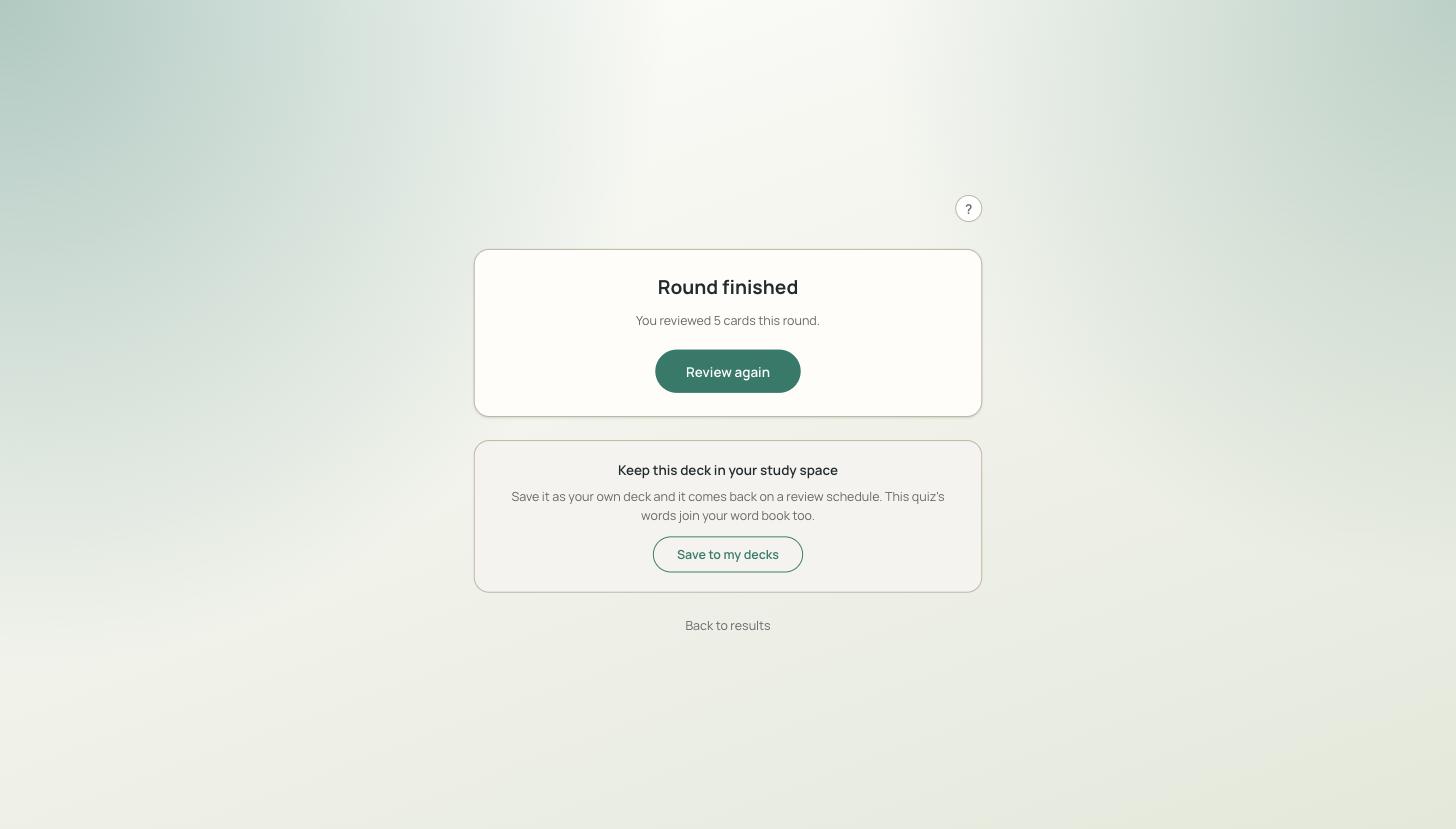
- Already signed in — the same action reads "Save to my decks" instead, no redirect needed.
Saving does two things: it turns the deck into a real entry under Study → Flashcards, where it starts getting spaced-repetition scheduling like any other deck there (new cards capped per day, "Good"/"Easy" push the next review further out, "Again" brings a card back soon) — and it adds this quiz's vocabulary to the student's own word book. Skip it, and the deck and its progress stay reachable only through that one exam link.
A signed-in student sees "Save to my decks" at the end of a round:
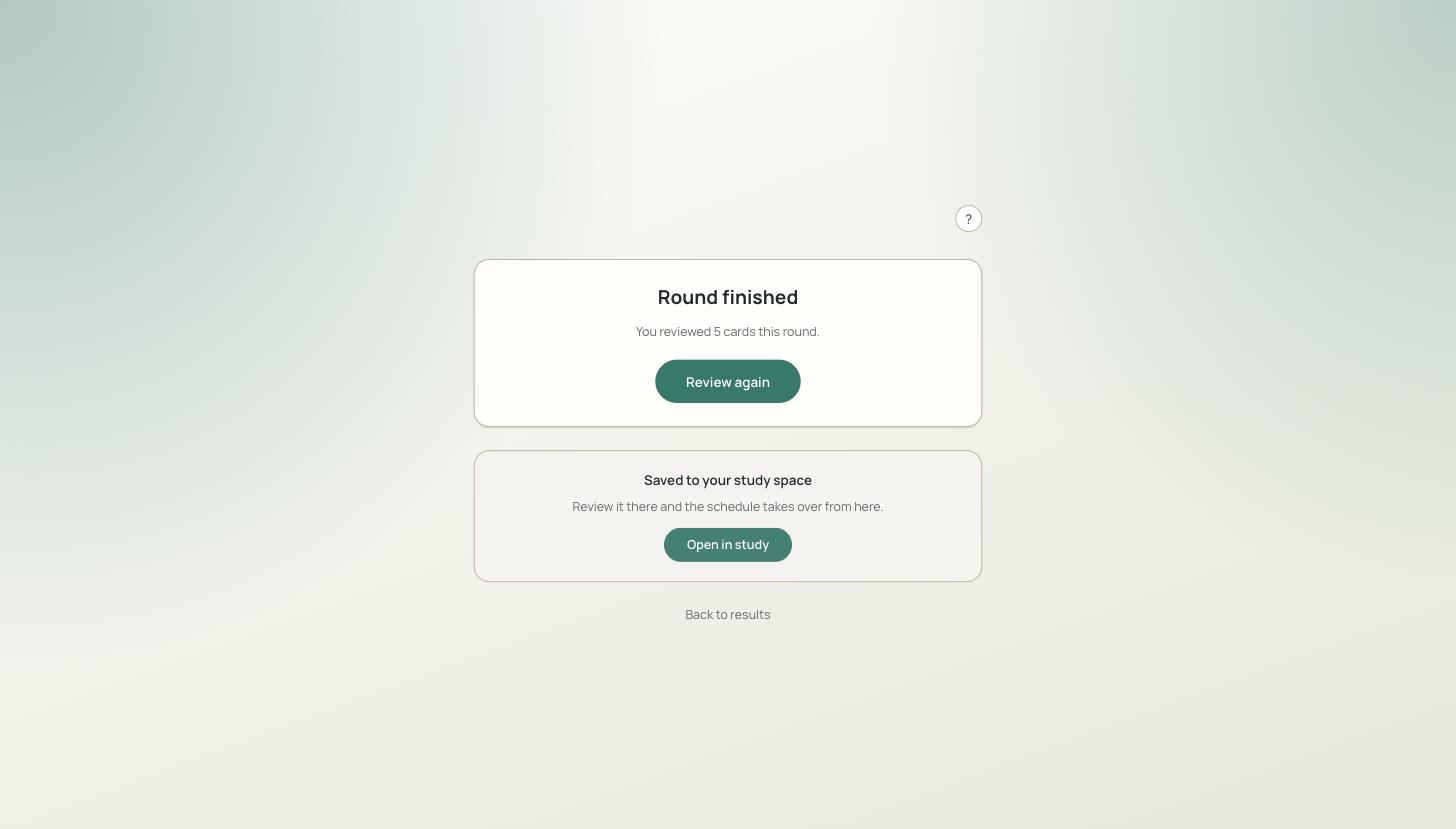
It saves instantly, in place, with a link straight into Study:
For teachers
- Nothing to enable. The feature is live by default across every exam link; there's no setting to turn on first.
- Turn it off for one exam link with the Offer flashcard review after the exam checkbox when generating that link — off means the results page shows no button, and the deck's own URL stays closed too.
- Class Exam sessions hold the button back until you broadcast it — once the session has ended, from the class session's control panel. Broadcasting is one-way (you can't recall it): a card's back face is the exam's correct answer, so it stays hidden until nobody can use it to retake the exam.
Good to know
- Works the same on a tenant's custom domain as the exam itself — no separate login wall, no extra AI credits spent.
- The deck page is never search-indexed; it's only reachable through the exam's own result link.
- There's no quiz-builder UI for hand-authoring a deck today — Quizzz derives one automatically, or an AI agent authors one through the connector.
Next
- Choose how the exam is handed out → Exam Modes.
- See scores and turn mistakes into practice → Results & Review.
- Build quizzes (and decks) with an AI agent → AI Connector (MCP).
- Open Quizzz ↗ to create an exam link.