Makeup Scheduler
In short: set up your campuses, makeup machines, weekly makeup periods and regular classes once. Each week, record who was absent and when they can't come, click Run scheduler, and Quizzz proposes several options to compare. Lock the one you want and print it for the front desk and students. You can also do the whole flow by talking to the AI assistant, Claude or ChatGPT.
Early access
The makeup scheduler is available to invited cram schools. To turn it on for your workspace, contact the Quizzz team.
Who it's for
Schools where absent students make up lessons by watching recordings on a limited set of machines:
- one or more campuses, each with a few makeup machines (for example "PC area 1–8");
- fixed weekly makeup periods, which can have different lengths;
- students' own regular classes, which makeup sessions must not overlap;
- sometimes a makeup period is used for an exam, so a student moves from a machine to an exam seat.
One-time setup
Open Makeup scheduler in the admin sidebar. Only workspace owners and admins can change the setup tabs; every teacher can record absences, run, lock and print.
Campuses & machines — campuses are shared workspace data: add or rename them on the Classes page (or here), then add machine groups for each campus:
- makeup machines for watching recordings, with how many there are;
- exam seats, used only when a locked session turns into an exam.
Machines are named "group + number", for example "PC area 3".
Periods — drag on the timeline to add weekly makeup periods (15-minute steps). Periods can have different lengths.
Regular classes — regular classes are your existing classes. Each class's grade and subject (free text), lesson length (the minutes one absence owes), campus and weekly meeting times live on the class itself, so you can also edit them on the class page without the makeup scheduler. Scheduling never overlaps a student's own class.
Students — set which classes each student attends and the campuses they can go to, in order of preference. The scheduler fills the first campus first and moves down the list when it is full; campuses not listed are never used, and an empty list means any campus. To prefer one floor over another, set each floor up as its own campus.
Rules — for example whether to split sessions (make up one lesson across several visits), the shortest part, the most periods per student per day, how many options to propose, and what to prioritise (most owed first, oldest absence first, fewer splits…).
Weekly flow
- Record absences: on the Students tab, open a student and add an entry under Owed lessons (class and missed date). The lesson length fills in automatically; scheduled and completed minutes are deducted as you go.
- Mark when they can't come: on the same screen, tap the periods the student can't make in this window. Regular class times are avoided automatically.
- Run scheduler: on the Schedule tab, pick a Scheduling window (up to 31 days) and click Run scheduler. Within seconds you get several options, each with complete and partial absences, remaining minutes, number of splits, and why some absences couldn't be placed (for example "every period is blocked" or "machines are full").
- Compare options: switch between options; the timeline shows who sits at each machine in each period. Click a session to:
- Lock this session — confirm just this one;
- Can't come then — add an unavailability for the student and re-run.
- Lock: click Lock option and confirm. Bookings are created and the minutes are deducted from the owed lessons. You can still Unlock single sessions later.
- Print: Print daily sheet (by date, for the front desk) or Print student slips (by student). Unlocked options can be printed too and are marked as a draft.
Adjusting on the day
Locked sessions can be marked complete, marked no-show, cancelled, or moved to an exam seat: the student takes an exam instead, the machine is freed, and the minutes go back to owed. Run again to fill the freed machine; locked sessions stay.
With the Quizzz AI assistant
Ask the admin AI assistant in plain language, for example:
Ming was absent from math on 10/8. Schedule his makeup for next week — he can't do Tuesday.The assistant finds the student, records the absence, adds Tuesday as unavailable, runs the scheduler and shows an options card in the chat:
- each option has a Lock button. It asks you to confirm first and runs the same checks as the scheduler page;
- Open in makeup scheduler opens this exact run with the option selected, so you can fine-tune it on the timeline;
- Print schedule opens the print page.
The assistant always shows you the options and waits for your answer before locking. It never locks in the same reply that proposed them.
With Claude or ChatGPT
With the Quizzz AI connector (MCP) the same flow works in Claude and ChatGPT. Clients that support MCP Apps (Claude on web and desktop, ChatGPT) show the options card right in the conversation:
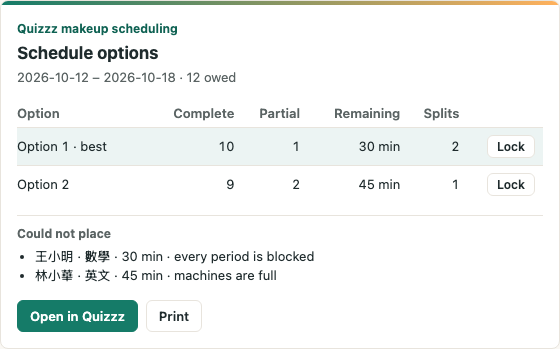
- Lock sends "Lock option N" into the conversation; the AI then calls the lock tool with the expected number of bookings. A mismatch or an outdated run is refused, so nothing gets locked by mistake.
- Open in Quizzz opens the scheduler with this option selected.
- Print opens the print page.
Clients without inline cards (for example AI tools in a terminal) get a text summary of the options with clickable scheduler and print links.
Example prompts
List students who still owe makeup lessons this week.

Hana missed English on 10/9 (90 minutes). She can't come on Thursday evenings.

Schedule makeup lessons for 10/13–10/19 and show me the options.

Lock option 1.

Move Ming's Wednesday session to an exam seat, then schedule again.

Print next week's daily makeup sheet.
If you belong to a team workspace
If you teach privately and are also a member of a school's team workspace, say which one you mean (for example "at Sunrise Academy"). Every makeup tool result names the workspace it acted on. For front-desk staff we recommend a workspace-bound API key, so nothing is written to a personal roster by mistake.
Scheduler and print links from the AI remember their workspace. If your browser is in a different workspace, the page offers Switch workspace and open; switching still checks that you are a member.
Permissions and data
- Makeup data belongs to the workspace and is visible only to its members; removing a member revokes access immediately.
- Only owners and admins change the setup tabs; any teacher can record absences, run, lock and print.
- The AI reads and writes through the same checks as the scheduler page and cannot skip any permission.
FAQ
Why can't some absences be placed?
The options card and the scheduler page list the reason: every period is blocked (regular class or unavailability), no period is long enough (when splitting is off), the split limit was reached, or the machines are full. Adjust periods, machine counts or rules and run again.
What if something changes after I run the scheduler?
When you lock, Quizzz checks that the option is still valid (owed minutes not already scheduled, periods and machines still there, no new unavailability). If something changed, it asks you to run again instead of locking an outdated option.
Does scheduling use AI?
No. Schedules come from Quizzz's own algorithm, and the same data and rules usually give the same options. The AI only understands your request and calls these features for you.