Manual Grading
In short: most questions grade themselves. Speaking answers, and any short-answer, fill-in-the-blank or writing question you choose, wait for you instead. Find them all on the quiz's Needs grading tab.
Which questions wait for you
| Question type | Graded by |
|---|---|
| Speaking | You, always |
| Short answer, fill in the blank, writing | You, when manual grading is on for that question. Otherwise Quizzz checks them against the accepted answers |
| Everything else (multiple choice and so on) | Quizzz, instantly |
If every question in a quiz grades itself, nothing will ever appear on the Needs grading tab.
Turn it on for a question
- Open the quiz and click Edit.
- On a short-answer or fill-in-the-blank question, turn on Grade this question manually.
- Save.
The setting belongs to that one question. The rest of the quiz still grades itself, and you don't need accepted answers for a manually graded question. Any you do add show up next to the student's answer as a reference.
Writing tasks are graded on their rubric, one score per criterion, so the answer counts in part rather than simply right or wrong.
Grade the answers
Open the quiz and go to the Needs grading tab. It lists every submission still waiting, across all of the quiz's links.
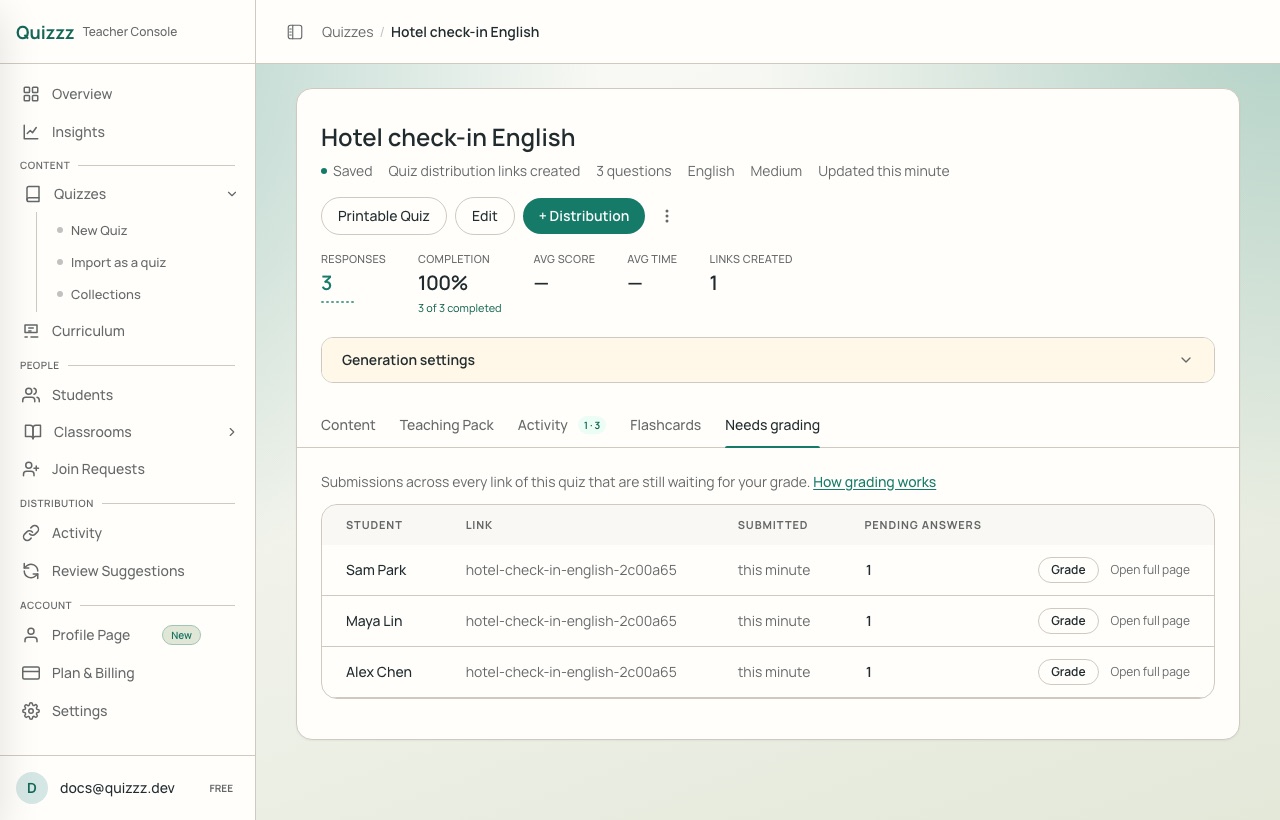
Click Grade to do it in place, or Open full page to see the student's whole attempt.
Choose Mark Correct or Mark Incorrect on each answer. Add a comment if you want to say why.
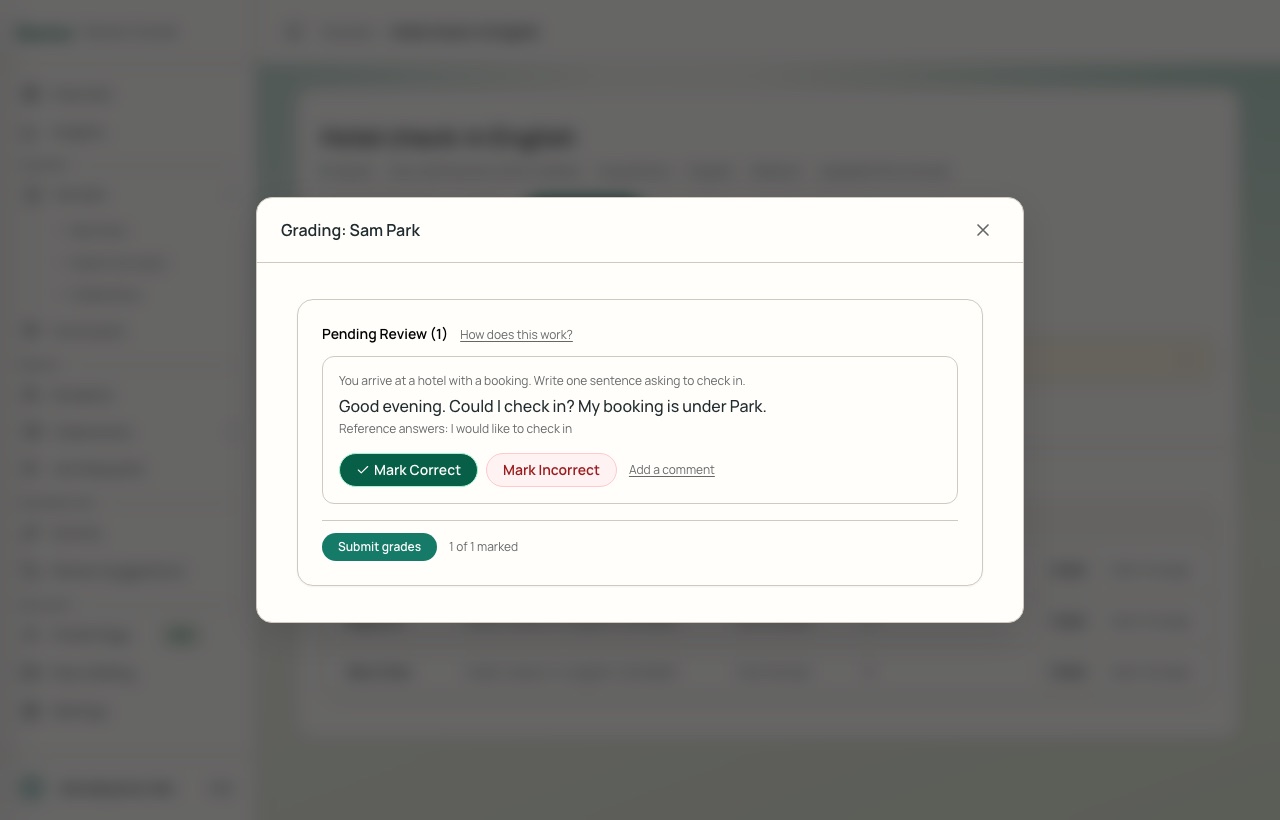
Click Submit grades.
Nothing changes for the student until you submit, so you can change your marks freely before then. You can also submit the ones you've marked and come back for the rest.
Let AI suggest a first pass
Get AI grading suggestions gives each answer a "likely correct" or "likely incorrect" with a reason. It uses your AI credits. You can take all of the verdicts at once and change the ones you disagree with, and you can send the AI's reason to the student as feedback. The decision stays yours: nothing reaches the student until you submit.
What students see
Right after submitting, a student sees the score for what's already graded and a note that their teacher is still grading some answers.
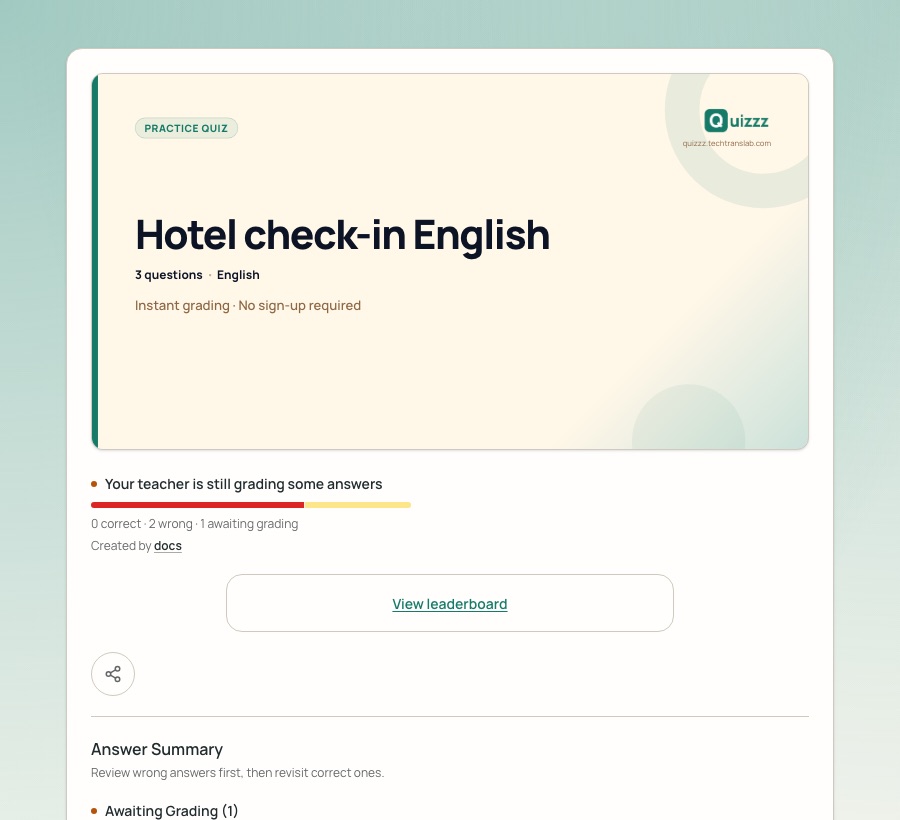
Once you submit, the same page shows their final result.
Until then:
- Their attempt stays out of your averages, so a half-graded score doesn't drag them down.
- They can't retake the quiz, so they don't start again while you're still grading the attempt.
Knowing when there's something to grade
- For a link assigned to a specific student, Quizzz emails you when that student finishes with answers waiting.
- Public links don't send this email. Check the Needs grading tab.
Tips
- See Results & Review for everything else you can do with finished attempts.